
IT Glue
Connect IT Glue to Uniportal so AI workflows can reference your documentation.
This guide walks through connecting IT Glue to Uniportal, so the AI can reference customer documentation while working a ticket.
Prerequisites
- Admin access to your IT Glue account, to generate an API key.
- Admin/Owner role in your Uniportal tenant.
Setup
Generate an API key in IT Glue
In IT Glue, generate a new API key. When you create it, IT Glue asks whether the key should have password access. That's your call: turn it on only if you want the AI able to read stored passwords, not just documents and configurations.
Configure the integration in Uniportal
- In the Uniportal dashboard, go to Integrations.
- Select the IT Glue tile.
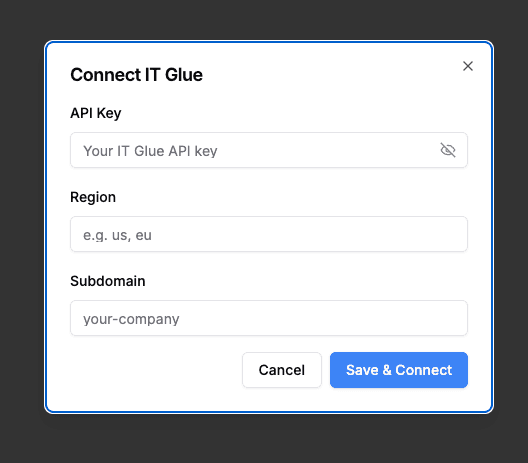
- Enter your API Key, Region, and Subdomain.
- Click Save & Connect.
Map companies and contacts
From the IT Glue integration tile, map IT Glue organizations and contacts to the matching company in Uniportal. Select Auto match to let Uniportal suggest matches for you to review and approve, or match them manually yourself.
Mapping is what lets the AI find the right information fast. When a ticket comes in from a specific customer about a specific device or server, the AI already knows which IT Glue organization to check and where to find that configuration detail, instead of searching blind. Uniportal works without mapping, but we recommend doing it.
Choose what gets synced
Once connected, open the IT Glue integration page and select Configure documentation sync to pick which documentation should sync to Uniportal: Documents, Configurations, and any Flexible Assets you use, backup, printing, remote access, and so on.
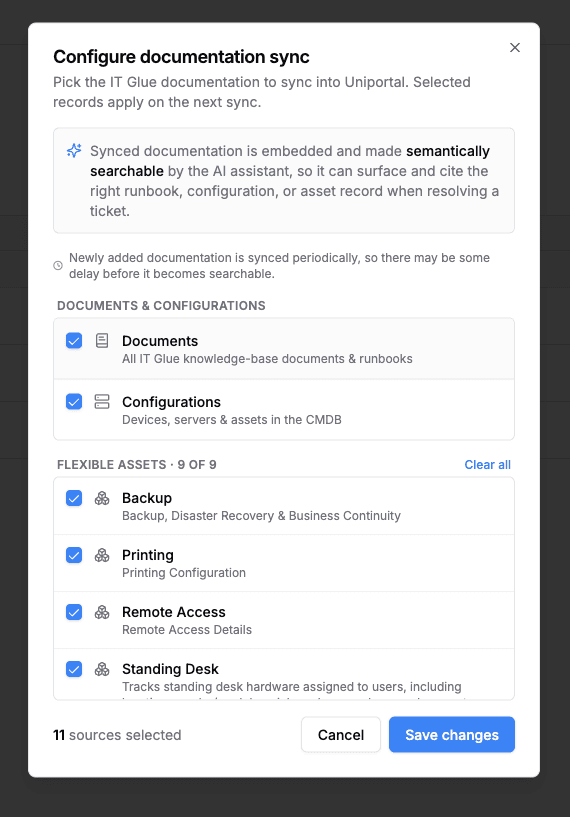
Synced documentation gets embedded and made semantically searchable, so the AI can surface and cite the right runbook, configuration, or asset record while it's working a ticket instead of you having to go look it up. Newly added documentation syncs periodically, so there can be a short delay before something you just added becomes searchable.